
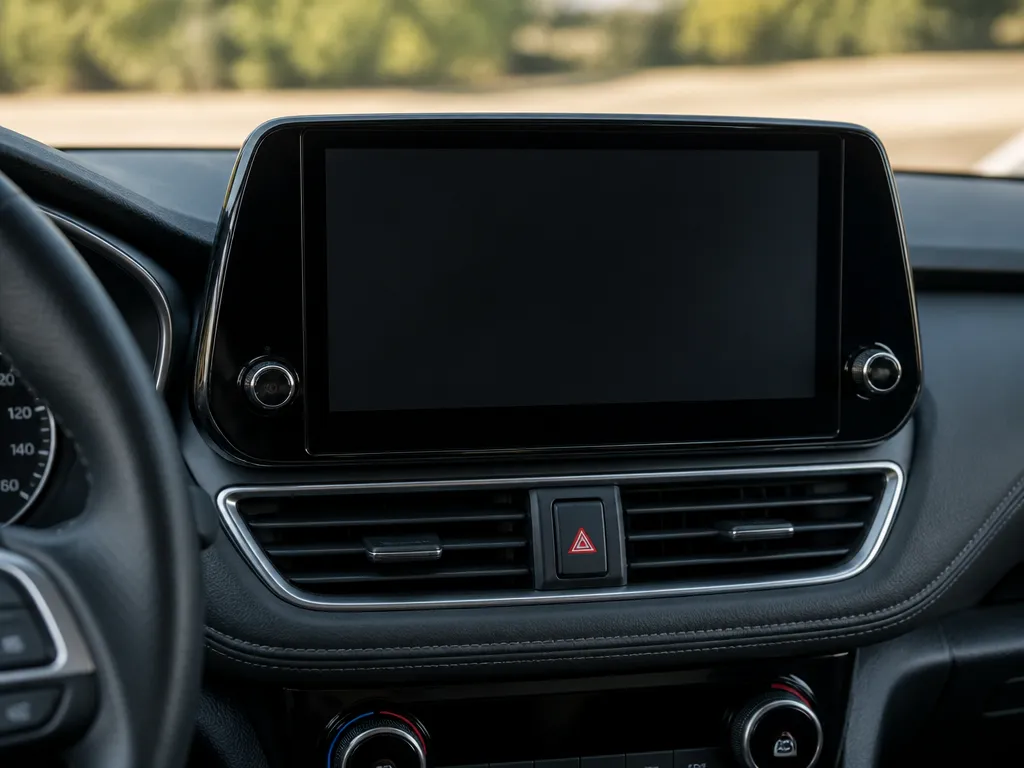
Your infotainment screen is smudged again, and those streaks make it hard to read navigation and phone prompts. If you just grabbed a glass cleaner and wiped harder, you may have worried about ruining the anti-glare coating. This guide gives a safe, power-off cleaning method using the right cloth and liquid, plus what to avoid, how to fix residue, and when to get help.
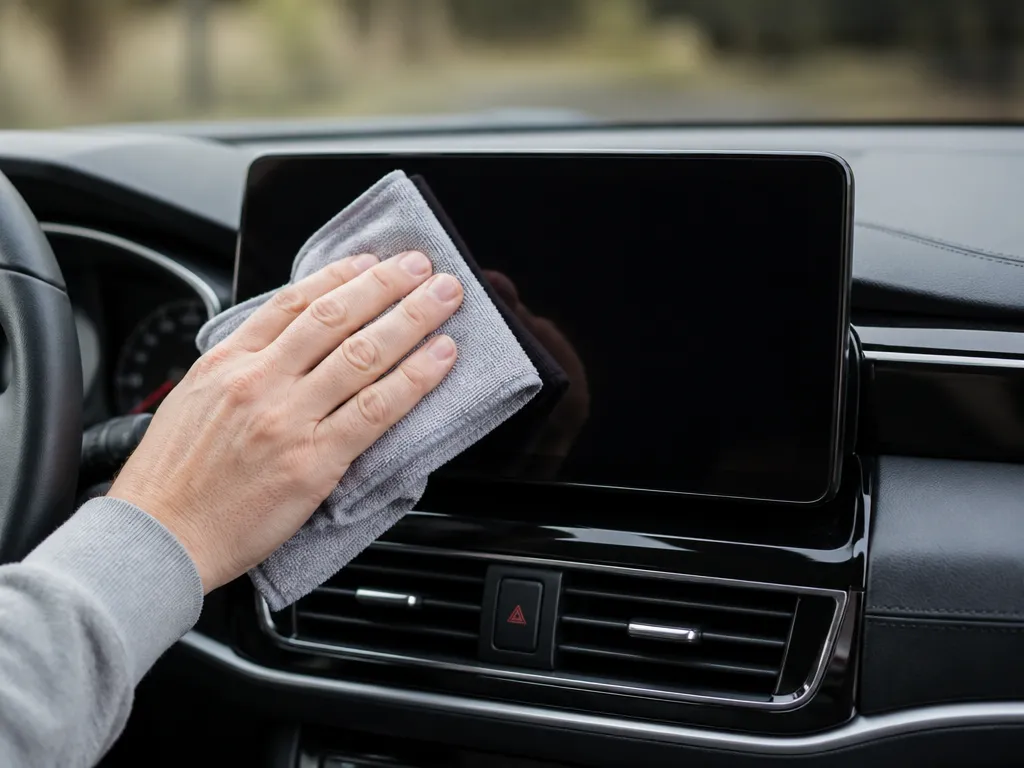
Power the radio off, then dry-wipe first to remove dust. Use a microfiber cloth lightly dampened with distilled water or 70% isopropyl alcohol, and never spray the screen directly. Expect streaks if you over-wet or use the wrong chemicals, including ammonia, acetone, and vinegar.
How To Clean The Infotainment Screen
Power down the head unit and let the screen cool before touching it with any cleaner. Cleaning a warm touchscreen can make streaks worse and increases the chance you loosen an anti-glare or protective coating.
Get the screen ready for cleaning by doing three quick things: shut the vehicle off (or power down the system), wait 5 to 10 minutes, and make sure no passenger hands or airflow vents are blowing dust onto the display. If the screen is fogged from cold weather, give it extra cooldown time so moisture is gone before you wipe.
Dry Wipe First: Remove Dust And Grit
Start dry to avoid grinding particles into the coating. Use a clean, soft microfiber designed for electronics, and wipe with light pressure. Flip to a dry section often so you are lifting dust, not spreading it.
For example, after driving on dusty roads (common in Jeep Wranglers, Tacoma trims, and older F-150 setups with exposed cabin filters), the screen can look smudged even when it is mostly grit on top. Dry wiping first prevents that grit from acting like sandpaper during the wet wipe.
Rule of thumb: if you can feel gritty residue with your eyes (sparkly particles, sand-like dust), dry wipe again before using any moisture.
| Screen condition | Best first move |
|---|---|
| Light fingerprints, streaky haze | Cool down, dry wipe, then very lightly dampen a microfiber (no direct spray). |
| Visible dust or grit | Dry wipe repeatedly until clean looking. |
| Greasy film from sunscreen/hand oils | Dry wipe, then proceed carefully with a screen-safe approach (later section). |
Tools And Products To Use
Use a clean, lint-free microfiber cloth plus a screen-safe cleaner, so you lift oil and smudges without scratching the anti-glare coating. Keep liquid off the touchscreen by spraying the cloth instead of the screen, and avoid anything abrasive, ammonia-based, or “glass cleaner” style products.
| Item | Amount/Specification | Notes |
|---|---|---|
| Microfiber cloth (first pass) | 1 to 2 cloths, 100 percent polyester or microfiber | Pick a plush, clean cloth meant for electronics or eyewear. |
| Microfiber cloth (final wipe) | 1 clean, dry cloth | Use a separate dry cloth to prevent streaks. |
| Distilled water | Small amount, damp cloth only | Safe for light smears and sweat residue. |
| 70% isopropyl alcohol | 70% isopropyl alcohol, used sparingly | Useful for greasy fingerprints, but use sparingly. |
| Manufacturer-approved screen cleaner | 1 bottle per vehicle | Use when your screen has an anti-glare or special coating called out in the owner’s manual. |
Microfiber Cloth Types That Work (And Won’t Scratch)
Use plush microfiber designed for screens, eyeglasses, or electronics, since the tighter weave helps avoid micro-scratches. Avoid old towels, shop rags, or anything that has dried wax or grit on it, because even one abrasive particle can burnish the surface.
In practice, keep one cloth for the initial loosen and one for the dry finish wipe. This reduces streaks, because you are not re-smearing oils that you just lifted.
Distilled Water Vs A 70% Isopropyl Alcohol Mixture
Distilled water is the safest choice for light smudges and hand oils, especially on touch displays with an anti-glare layer. 70% isopropyl alcohol can cut through heavier greasy buildup, but it should be occasional, not constant.
Trade-off: alcohol cleans faster for fingerprints, yet it can be harsher on some coatings if you overdo it. Apply it to the cloth, keep passes gentle, and stop if the display starts looking “foggy” or uneven.
When A Manufacturer-approved Cleaner Is Necessary
If the owner’s manual or infotainment documentation specifies a particular product, follow that guidance. OEM-approved cleaners are often formulated to be compatible with the exact anti-glare and touch-layer chemistry on displays used in vehicles like GM Super Cruise-era stacks, Ford Sync infotainment screens, Hyundai/Kia setups, and many Toyota/Lexus tablets-style units.
Pro tip: If you see rainbow haze, peeling edges, or the screen looks patchy after wiping, pause and switch back to distilled water or the OEM cleaner. Continued treatment with random cleaners can make residue harder to remove.
What To Avoid On Screens
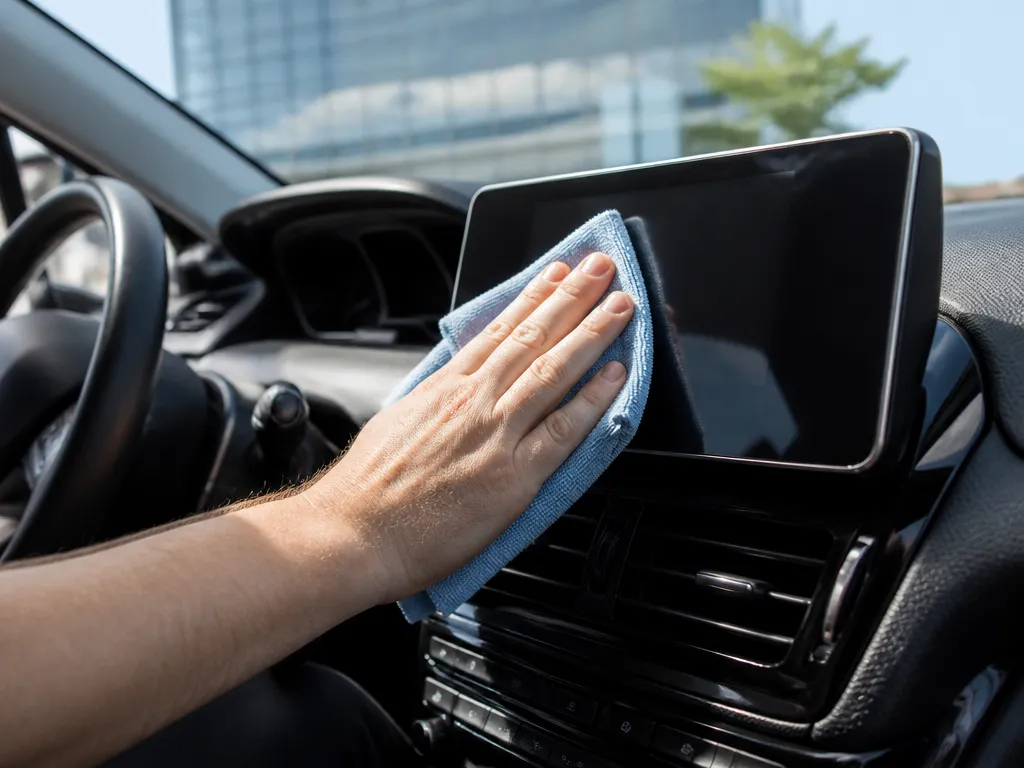
Infotainment touchscreens often have a delicate anti-glare and anti-smudge coating that can haze permanently if you use the wrong cleaners or tools. Harsh chemistry and aggressive wiping can strip that coating, leaving glare and streaking that never fully comes back.
No Ammonia, Acetone, Or Vinegar Cleaners
Skip cleaners that contain ammonia or acetone, and avoid vinegar-based solutions. These chemicals can attack screen coatings and damage the oleophobic layer that helps fingerprints wipe off with less effort.
For example, a cleaner meant for glass on mirrors or windows can be fine on a car windshield, but it is a bad choice on a coated touchscreen. If the label does not clearly state it is safe for electronic touch displays, treat it as a risk.
Never Spray Cleaner Directly Onto The Display
Spraying cleaner straight onto the screen invites liquid to run into the edges, seams, speakers, or the bezel gap. Even if the device survives today, moisture can leave residue behind or speed up corrosion on internal contacts.
Use a damp application strategy instead: put the cleaner on the cloth first, then wipe the screen. Cloth wetness should be controlled, just enough to lift oils, never enough to drip.
Avoid Abrasive Pads And Paper Towels
Paper towels can shed fibers and micro-scratch the coating, which later turns light into more glare. Microfiber is the right direction, but even microfiber can be harmful if it is dirty or you press hard while scrubbing.
Keep pressure light and let the cleaner do the work. If residue remains after a gentle pass, re-wet the cloth and repeat instead of grinding it.
Screen Protectors: Different Materials, Different Rules
A factory or aftermarket screen protector changes the cleaning rules because you are cleaning the protector surface, not the bare panel coating. Tempered-glass protectors and film protectors often have different finishes, and the “safe” cleaner for one can dull the other.
In practice, follow the protector manufacturer’s guidance first. If you do not know the type, start with the gentlest approach, then check for cloudiness or rainbow smearing after drying.
| Protector type | What to watch for | Common mistake |
|---|---|---|
| Tempered glass | Edges look hazy after harsh wipes | Scrubbing grit into the coating |
| Matte anti-glare film | Cloudy patches after wrong chemistry | Using ammonia or acetone-based products |
| Gloss clear film | Streaks and “oil rainbow” residue | Too-wet cloth or direct spray |
Insider tip: If the screen looks worse right after cleaning, stop and switch methods. Repeated aggressive cleaning often locks in haze by removing coating or embedding fibers around the edges.
Step-by-step Gentle Cleaning Method
For stubborn fingerprints, repeat the damp cloth step once, then go straight to the dry wipe. If a haze remains after two careful passes, stop and reassess the cleaner choice instead of attacking it harder.
Pro tip: If your touchscreen has a visible “rainbow” sheen under light, treat that as a coating issue, not just dirt. Keep cleaning light and consider professional help if it does not improve after careful dry passes.
| Tool | What to use | Common mistake |
|---|---|---|
| Cloth | Two clean microfiber towels | Dirty microfiber or paper towels |
| Moisture | Distilled water or screen cleaner on the cloth | Spraying liquid directly onto the screen |
Test Area And Coating Caution
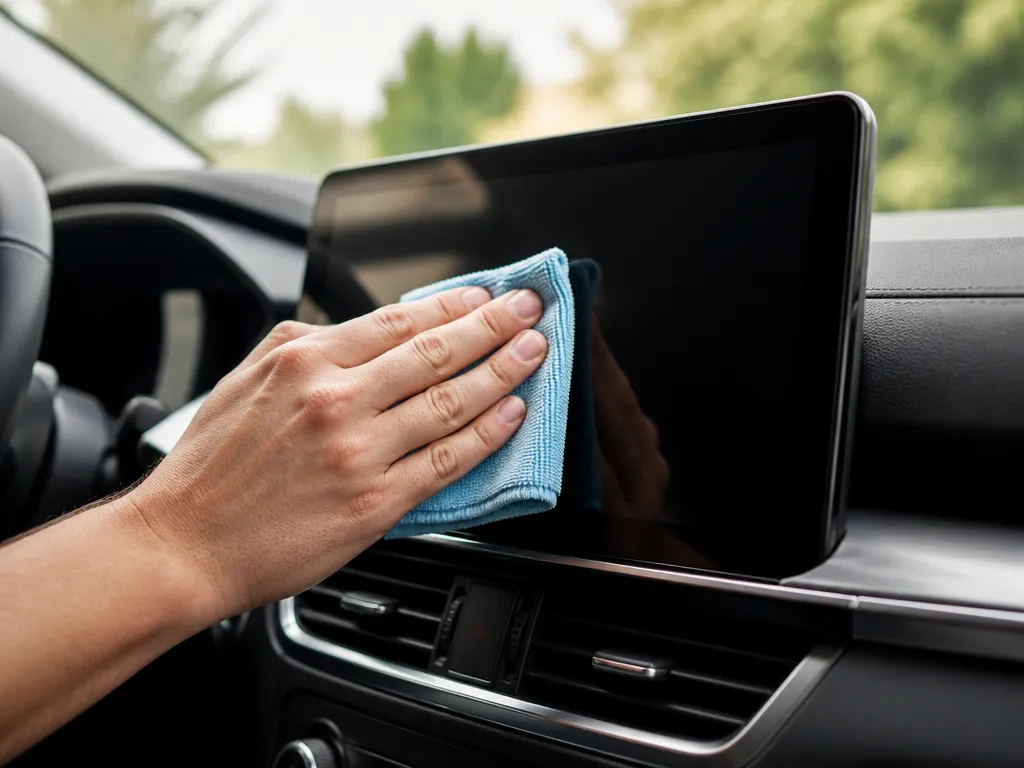
Anti-glare screen coatings and some factory screen protectors are easy to haze if you hit them with the wrong cleaner. A quick patch test on a corner will tell you fast whether a chemical is safe before you clean the whole display. Always use light pressure and low moisture around the glass, because liquid can migrate into the bezel gap.
Patch-test The Cleaner First
Pick an inconspicuous area, usually the bottom corner near the bezel, and apply your cleaner to the cloth first, then touch a tiny spot on the screen. Wait about a minute and check for rainbowing, dull fog, or web-like streaks that do not wipe away. If the spot changes, stop and switch products.
Why Anti-glare Coatings Haze
Anti-glare coatings reduce reflections using a surface texture or film, and harsh solvents or strong alcohol mixes can attack that top layer. The common failure mode is a permanent look change, like milkiness or uneven sheen, even if the haze wipes “clean” for a few minutes. Once the coating changes, you usually cannot reverse it with DIY polishing.
Be extra cautious with cleaners that contain ammonia, bleach, strong degreasers, or heavy alcohol. Many glass cleaners are meant for bare glass mirrors and windows, and touchscreen coatings often are not the same chemistry. For coating protection, stick to screen-focused formulas and only a barely damp cloth.
Clean Around Bezel Gaps Without Soaking
Touchscreens mount in a frame with small openings around the bezel, especially on many GM, Ford, Toyota, and Hyundai systems where the panel edges sit close to trim. When fluid sits on those edges, it can wick inward and cause touch sensitivity issues or dead pixels that come and go. A good rule is to keep cleaner on the cloth, not on the screen.
| What to do | Why it matters |
|---|---|
| Wipe in short strokes and stop at the bezel edge | Reduces chance of liquid traveling into the gap |
| Use a second dry microfiber to remove any edge moisture | Prevents runs that leave residue near the frame |
| Keep the cloth lightly damp, then finish dry | Limits oversaturation of the coating and seals |
Insider tip: If a streak forms right at the bezel, that usually means residue or moisture pooled at the edge. Switch to a clean, dry side of the cloth immediately and keep the cloth off the bezel openings.
Fix Streaks, Smudges, And Haze
Streaks usually come from leftover cleaner, an oily residue, or wiping in circles before the surface fully dries. Smudges that come back fast are typically finger oil or a coating mismatch between your cleaner and the screen’s factory treatment. Persistent haze means the screen surface is being coated over, etched, or damaged, so you need a different next step than “wipe and repeat.”
Streaks: Residue Vs Oil Film Vs Uneven Drying
For streaks that look like clear lines, the most common cause is cleaner residue on a touchscreen that still had moisture. For streaks that feel greasy, the cause is an oil film breaking up into streaks as it dries. For patchy, cloudy stripes, the cause is uneven drying (too-wet cloth, or wiping after it starts to dry).
Smudges That Return Fast: Finger-oil Or Protective Film Issue
Smudges that reappear within a day often mean finger oil is still on the surface, or you’re applying the wrong type of product. Some screens have an anti-smudge or anti-reflective layer, and certain sprays and “screen protectant” wipes can interfere with it.
For fast-return smudges, use this rule: switch to a dedicated screen wipe or a very mild solution meant for electronics, then stop using any product that claims it “adds a layer” or is meant for glass only.
For example, Mazda, Toyota, and Honda touchscreens often show more smearing when owners use household glass cleaner, then chase it with stronger cleaners.
Insider tip: If your cloth smells like a household cleaner after wiping, that chemical is likely part of the problem.
| Symptom | Likely cause | Fix |
|---|---|---|
| Smudges return quickly | Finger oil left behind or coating interaction | Clean with electronics-safe product, then dry-buff with microfiber |
| Rainbow sheen after wiping | Residue from sprays or coatings | Lightly dampen microfiber again, remove residue, dry immediately |
Persistent Haze: Coating Wear, Etching, And What To Do Next
Persistent haze that doesn’t improve after residue removal suggests the screen’s surface is coated or etched. Treat haze like damage, not dirt, because repeated wet cleaning can make it worse by carrying residue deeper into micro-etched areas.
For haze that looks like a foggy veil across the whole display, stop cleaning methods that “promise shine,” like waxes, hydrophobic protectants, or multipurpose degreasers. Next step is to verify whether the haze is on the screen or on a removable factory film or aftermarket screen protector, then replace the protector if present. If the haze is on the bare display, professional evaluation is the safest move because replacement or refinishing depends on the specific infotainment unit and touchscreen construction.
If Liquid Enters The Dash
Shut the infotainment and vehicle systems down as soon as liquid reaches the screen. Power off fully and do not keep pressing buttons, since moisture can track into seams and controls.
Blot the surface immediately with a clean, lint-free microfiber. Keep pressure light so you don’t drive liquid around the bezel or into the touchscreen frame.
Immediate Actions To Reduce Damage
For example, if you spilled cleaner while wiping, you are trying to stop capillary action. Even small amounts can creep under the protective layers, so the goal is quick removal plus calm drying time.
| Symptom after drying | Likely next step |
|---|---|
| Screen stays dark, but audio controls still respond | Dealer or qualified shop inspection of the display and harness |
| Intermittent touch or ghost inputs | Moisture-related touch controller/harness check |
| Burn-in look, permanent haze, or new lines | Stop using it and have it diagnosed, as damage may be permanent |
What Not To Do
If you think liquid reached the bezel, treat it like an electrical moisture event. Let it dry fully before any test, and stop using the unit if it acts weird.
How Often To Clean Touchscreen
Clean the infotainment screen about once every 1 to 2 weeks under normal daily driving, and quick-wipe it whenever fingerprints or haze build up. If the vehicle sees lots of kids, fast-food residue, or strong sun heat, bump it to about once a week. Over-cleaning increases wear risks on screen coatings, so focus on gentle wipes instead of repeated wet cleaning.
Frequency That Matches Real-world Exposure
Screen grime usually comes from skin oils and sunscreen, plus sticky food particles that get ground into the surface. Treat exposure levels as your trigger, not the calendar.
| Situation | What you’ll see | Recommended cleaning cadence |
|---|---|---|
| Fingerprints after everyday use | Smears, dull haze | Quick microfiber wipe as needed, full clean every 2 weeks |
| Sticky spills or food contact | Tacky spots, visible streak trails | Spot clean immediately, full clean weekly until it stops returning |
| Hot climates | Streaking that reappears quickly | Full clean every 1 to 2 weeks, skip heavy liquids |
Preventive Habits That Reduce How Often You Need To Deep Clean
Small habits cut screen buildup without chasing the perfect shine. Keep cleaning to the minimum that restores clarity.
Warranty and coating reminder: screen coatings and touch layers can be sensitive. Follow your vehicle owner’s manual and the infotainment-screen product label for compatible cleaners and approved microfiber types, since warranty language often depends on using recommended methods.
For most late-model systems from brands like Toyota, Honda, Ford, Hyundai, and Volkswagen, one “full” clean every 1 to 2 weeks is usually enough, with spot wipes in between. If streaks return even after proper microfiber use, stop repeating the same cleaner and switch to the method your owner’s manual allows.
Quick Summary
If you over-wet the display or use the wrong chemicals, streaks are likely, especially with ammonia, acetone, or vinegar. After the circular wipe, dry immediately with a second clean microfiber, and buff the screen dry to minimize haze. If liquid ever drips into the dash or you get screen faults, get help instead of trying to keep cleaning.
| Situation | Best first move |
|---|---|
| Light fingerprints, streaky haze | Cool down, dry wipe, then very lightly dampen microfiber (no direct spray), buff dry |
| Visible dust or gritty residue | Dry wipe repeatedly until it looks clean before any moisture |
| Greasy film (hand oils, sunscreen) | Dry wipe first, then proceed carefully using distilled water or 70% isopropyl alcohol |
| What to avoid | Paper towels and shop rags, hard pressure, direct spraying, ammonia, acetone, vinegar |
Frequently Asked Questions
What Can I Use To Clean My Infotainment Screen Without Damaging It?
Use a clean microfiber cloth and, if needed, lightly dampen it with distilled water or use 70% isopropyl alcohol sparingly when the owner’s manual permits it. Avoid spraying cleaners directly on the screen, and skip ammonia, paper towels, and harsh glass cleaners because those can harm coatings.
Can I Use A Screen Cleaner Spray On An Infotainment Display?
Only use a screen-safe product intended for electronics, and still apply it to the cloth first, not to the display. If the label does not explicitly say it is safe for touchscreens or LCD/LED screens, it is better to avoid it.
How Do I Remove Fingerprints And Smudges From An Infotainment Screen?
Start with a dry microfiber wipe, then use a second pass with a slightly damp cloth if smudges remain. For stubborn greasy spots, use very light pressure and do a few short wipes, not one aggressive scrub.
Should I Turn Off The Infotainment System Before Cleaning The Screen?
Yes. Turn the system off and let it cool a bit so you reduce the chance of streaking and protect the display, especially if the cabin is hot.
Is It Safe To Use Disinfectant Wipes On A Car Infotainment Screen?
Be cautious, because many wipes contain alcohol or other chemicals that can damage screen coatings. If you must disinfect, use a screen-safe wipe (or lightly dampened microfiber) and avoid getting liquid into seams, buttons, or along the bezel.
Why Do I Get Streaks Or Haze After Cleaning The Infotainment Screen?
Streaks usually come from using the wrong cloth, cleaning when the screen is too hot, or using too much liquid. Use a dry microfiber to buff lightly after wiping, and keep the cloth barely damp rather than wet.